Tutorials · session.rocks
How to use session.rocks
Three short guides – pick the one that fits you.
How to use session.rocks as a musician
Whenever you play, you check in. The map then shows everyone where the music is – in a venue or anywhere else.
Before your first check-in
- Register for free and confirm your email address.
- Set up your profile (see below). You need at least a profile URL, an experience level and one instrument – otherwise the map asks you to complete your profile instead of checking you in.
- Allow location access for your browser, so the map can find you.
Set up your profile
- 1
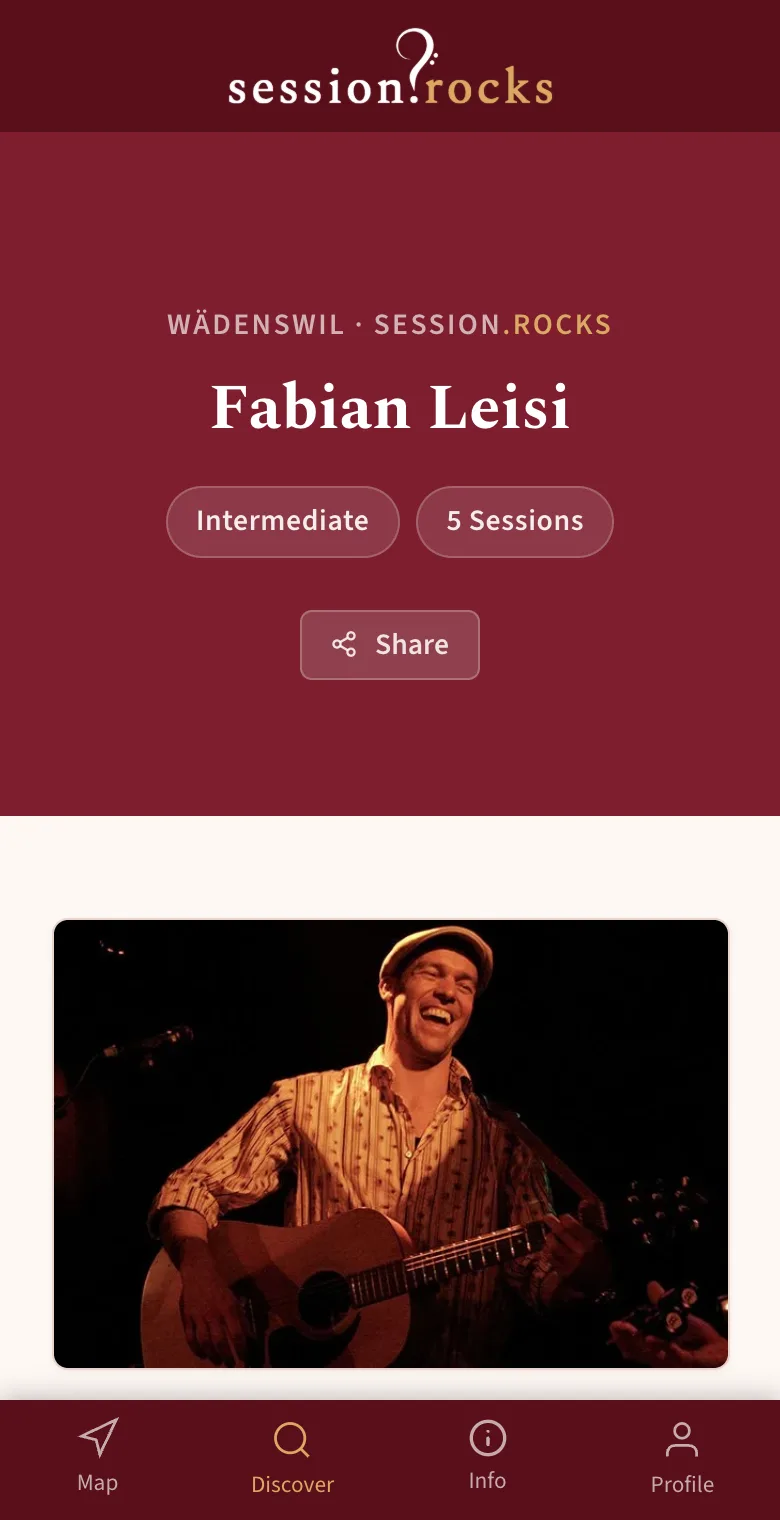
This is what you're building
Your public profile lives at session.rocks/musiker/your-name. It shows who you are and where you've played, and lets visitors open your website, leave you a tip or listen on Spotify. It grows with every session.
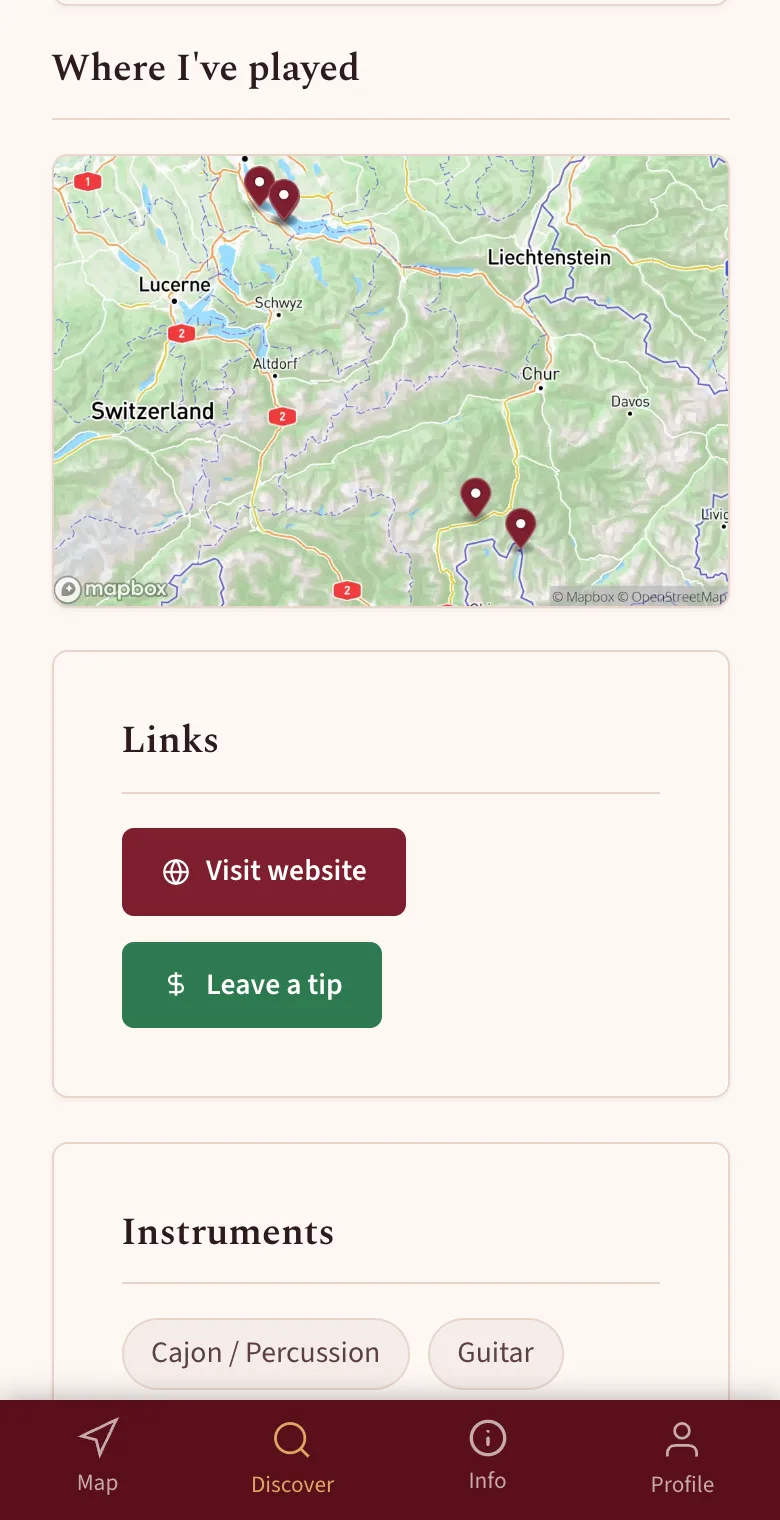
- 2
Fill in the basics
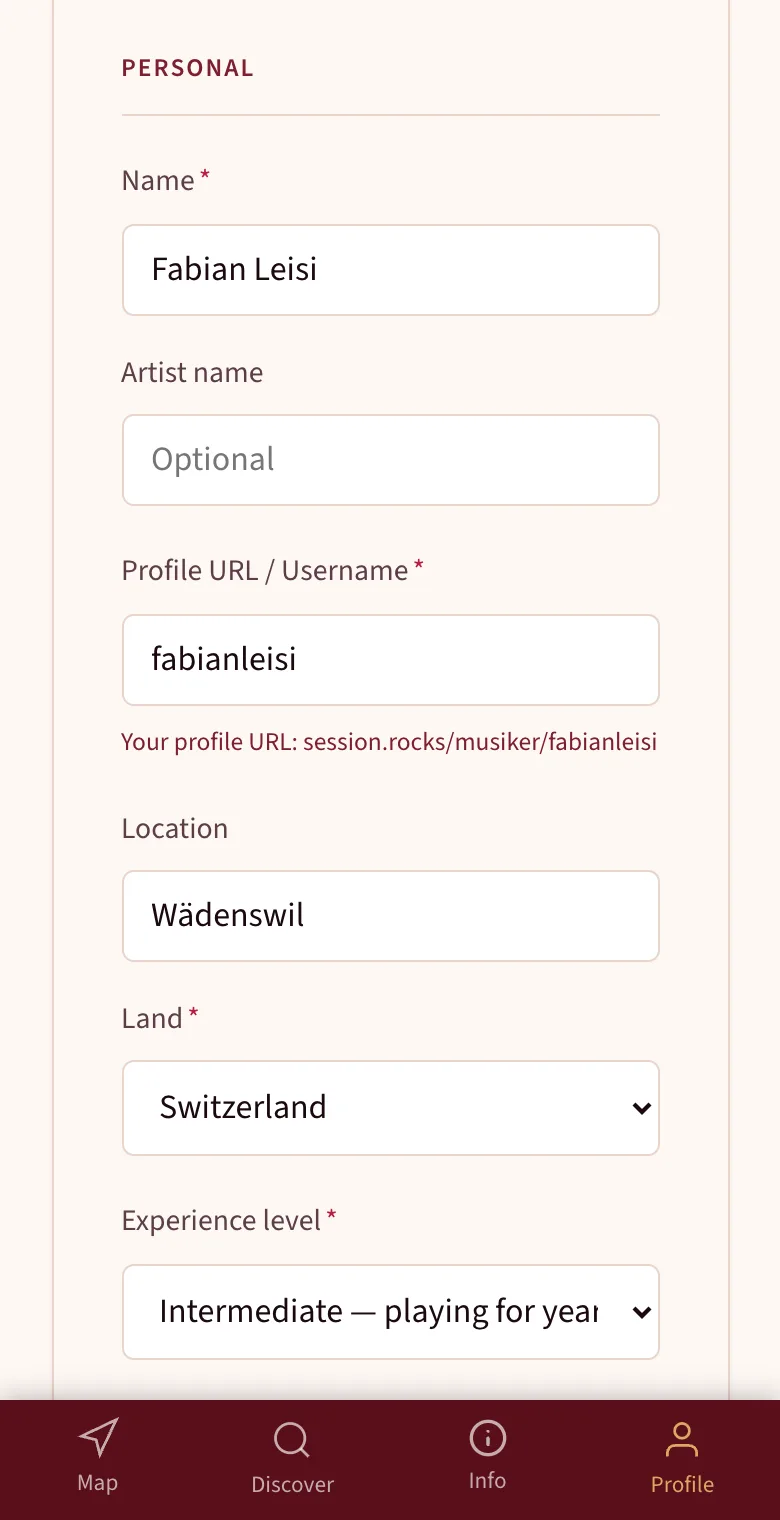
After registering, open My Profile. Add your name or artist name, choose your profile URL and set your location and experience level. A profile photo and a few lines about you make it personal.
- 3
Pick your instruments and add your links
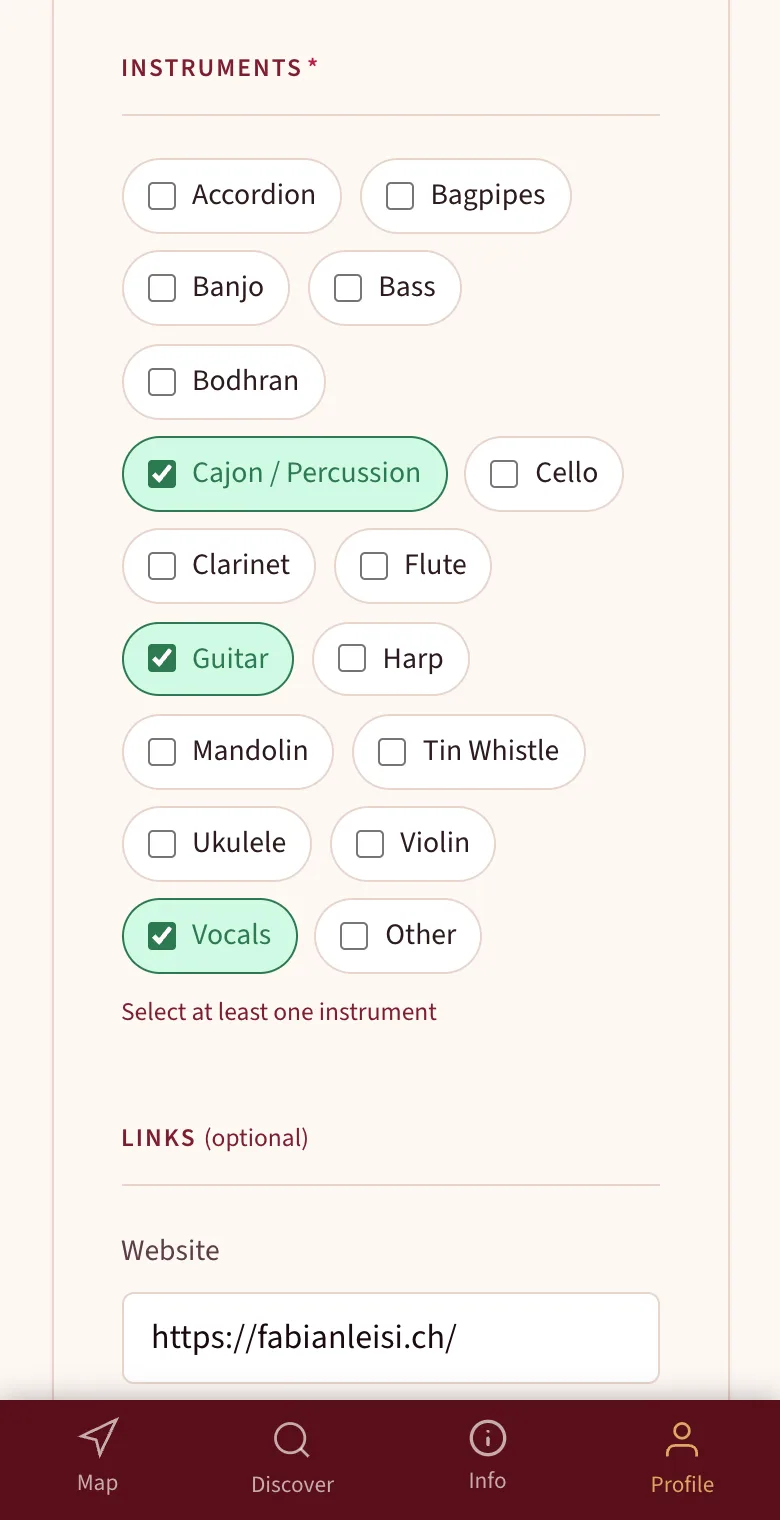
Tick every instrument you play – these are the ones you can choose from at each check-in. Further down you can link your website, a tip link and Spotify. Tap Save changes, then use Share on your profile to send it to friends, venues and fans.
Check in at a venue
- 1
Open the map
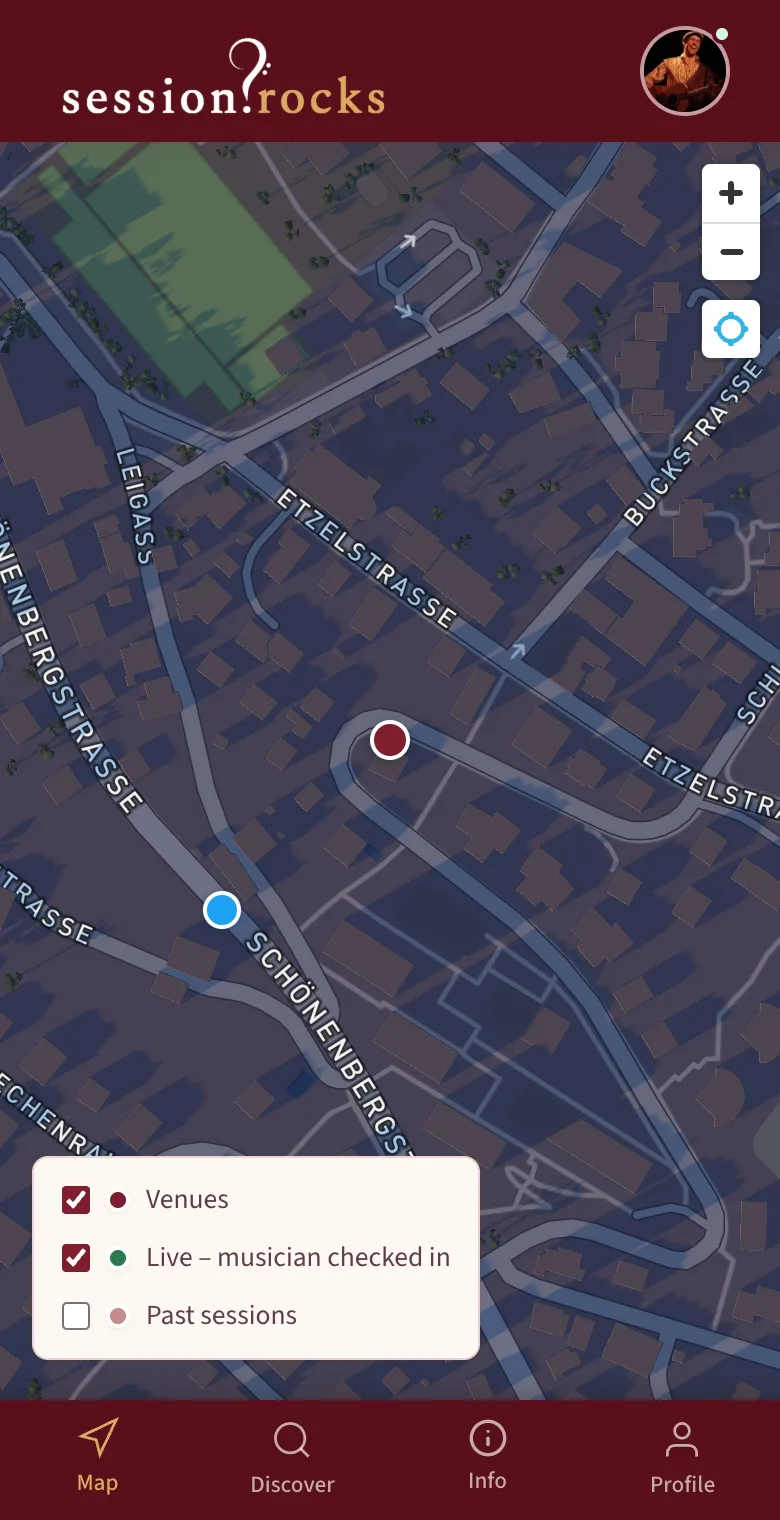
Sign in and open the map. Every burgundy dot is a venue that welcomes sessions today. The blue dot is you – if you can't see it, allow location access for your browser.
- 2
Tap the venue you're at
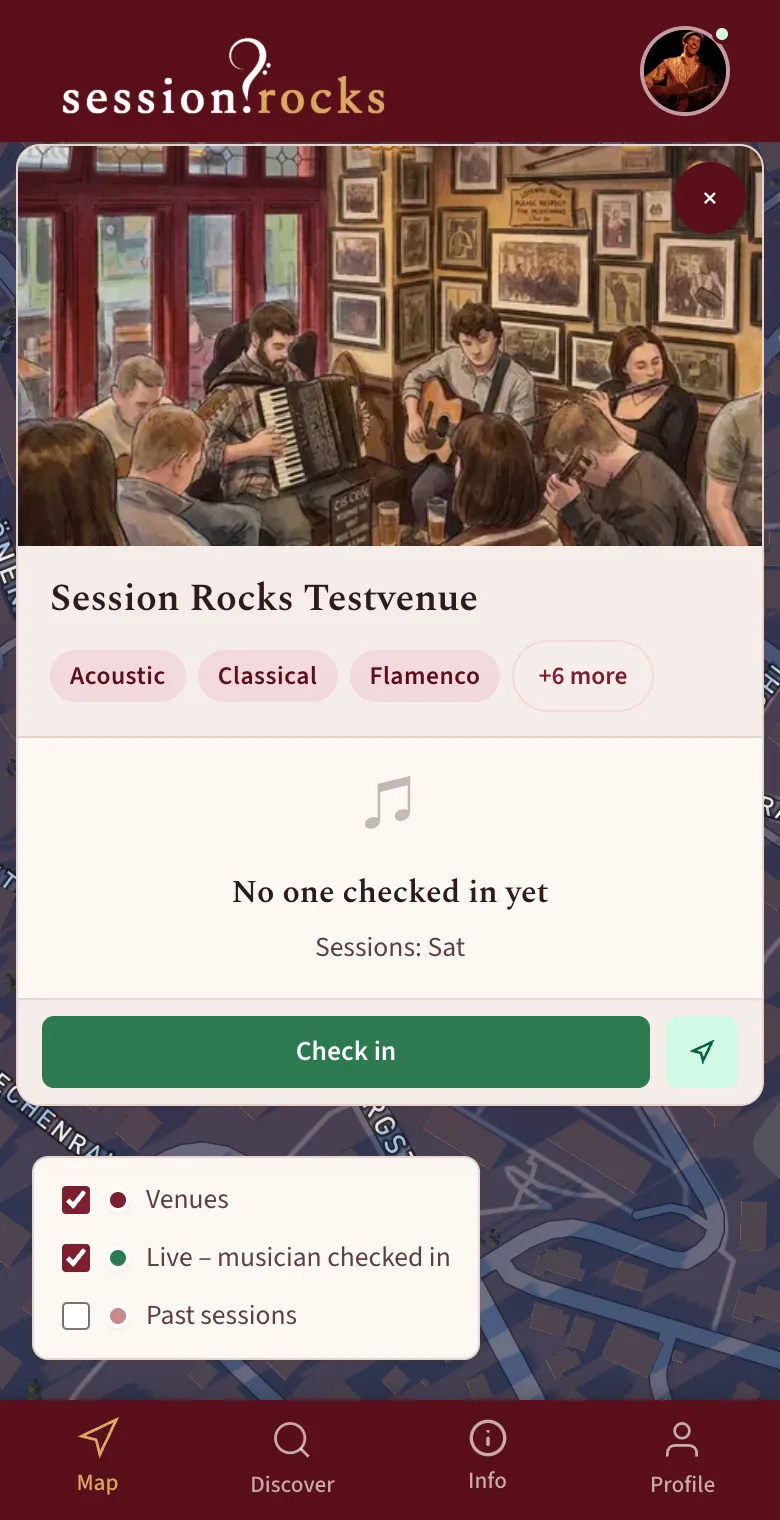
The venue card opens with its genres and whoever is already playing. Tap the green Check in button.
- 3
Say what you're playing
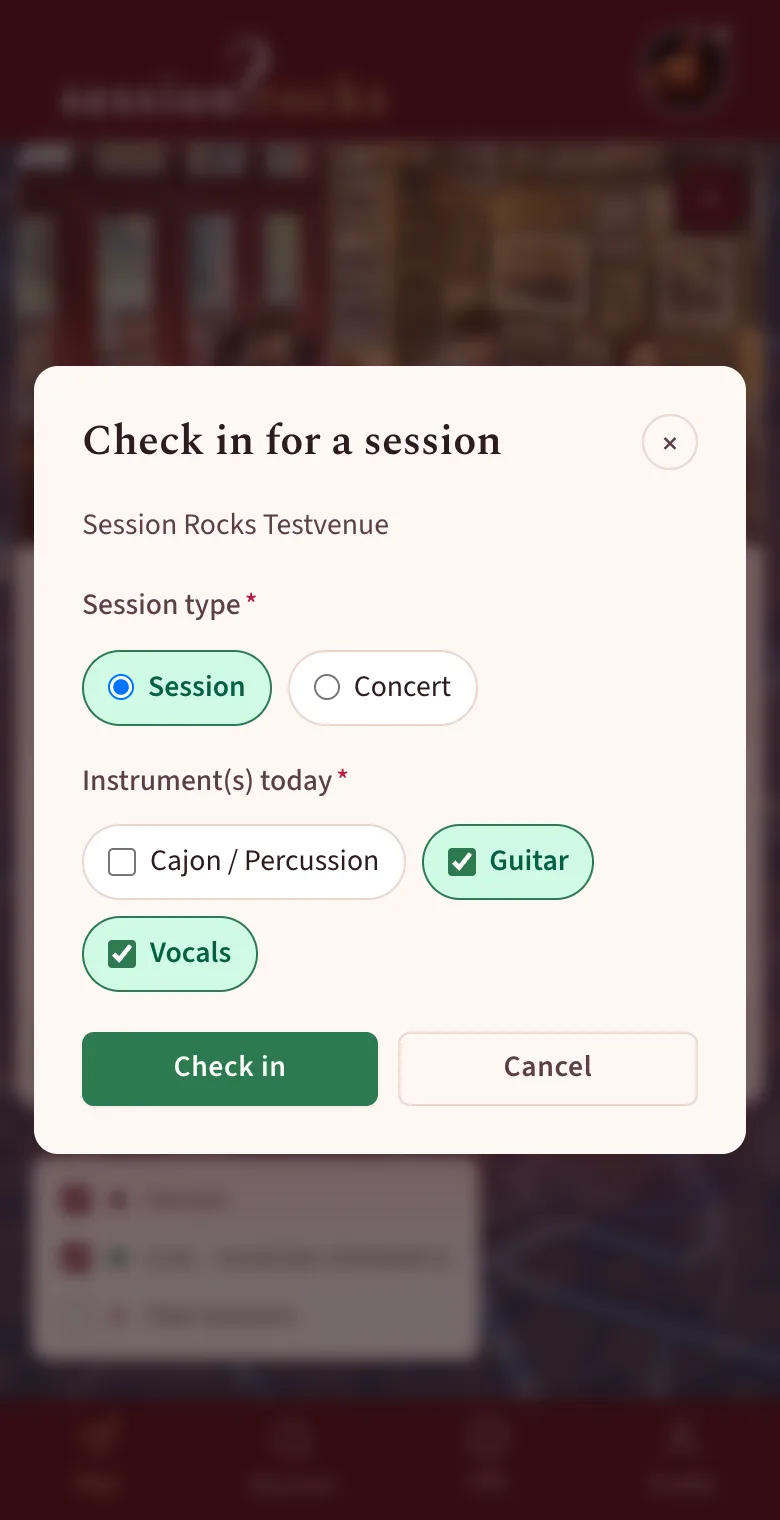
Choose Session (others are welcome to join) or Concert (you're performing), tick the instruments you have with you today and confirm with Check in.
- 4
You're live on the map
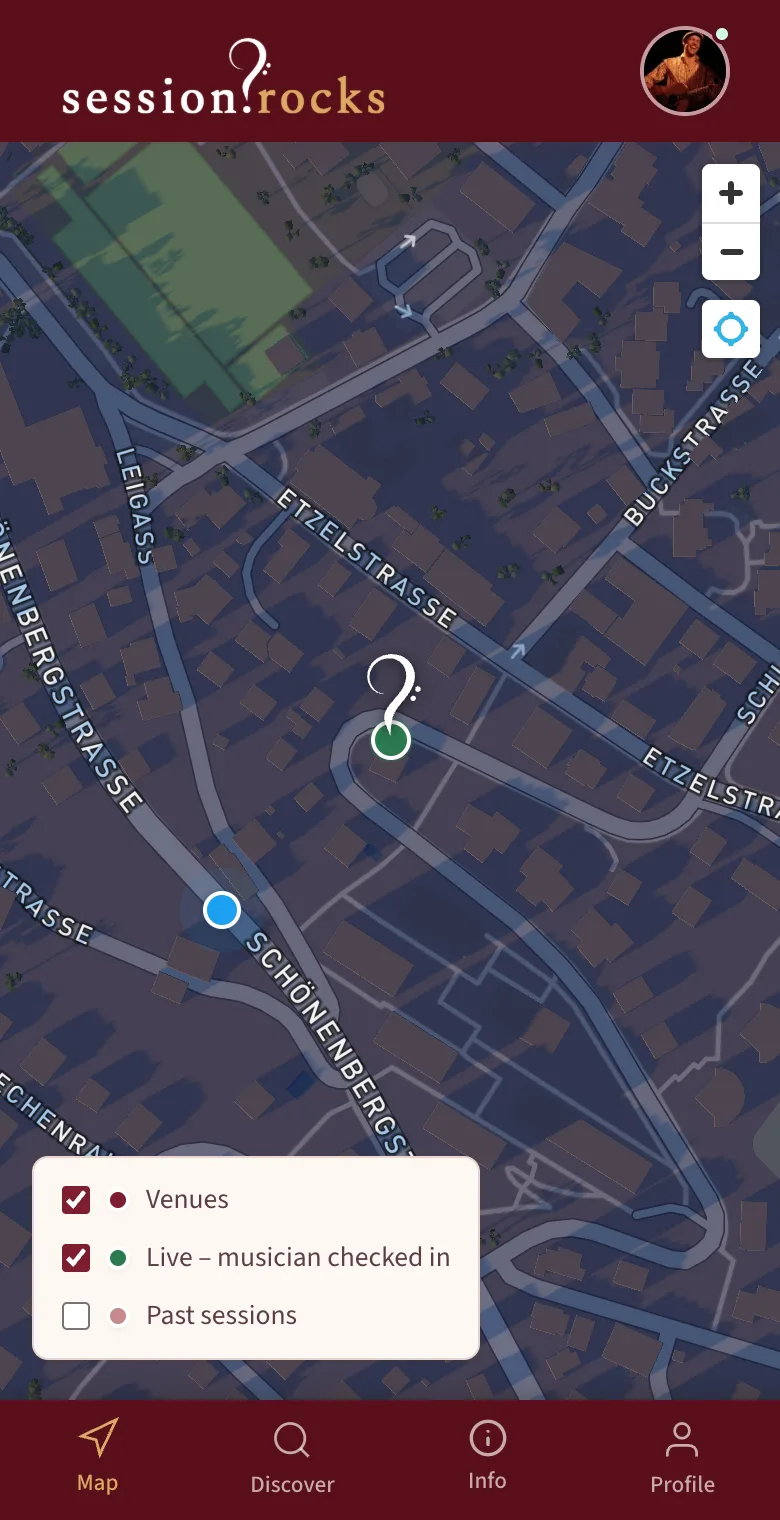
The venue's marker turns green and carries the session.rocks logo. Everyone who opens the map now sees that music is being played here – no login needed.
- 5
Check out when you're done
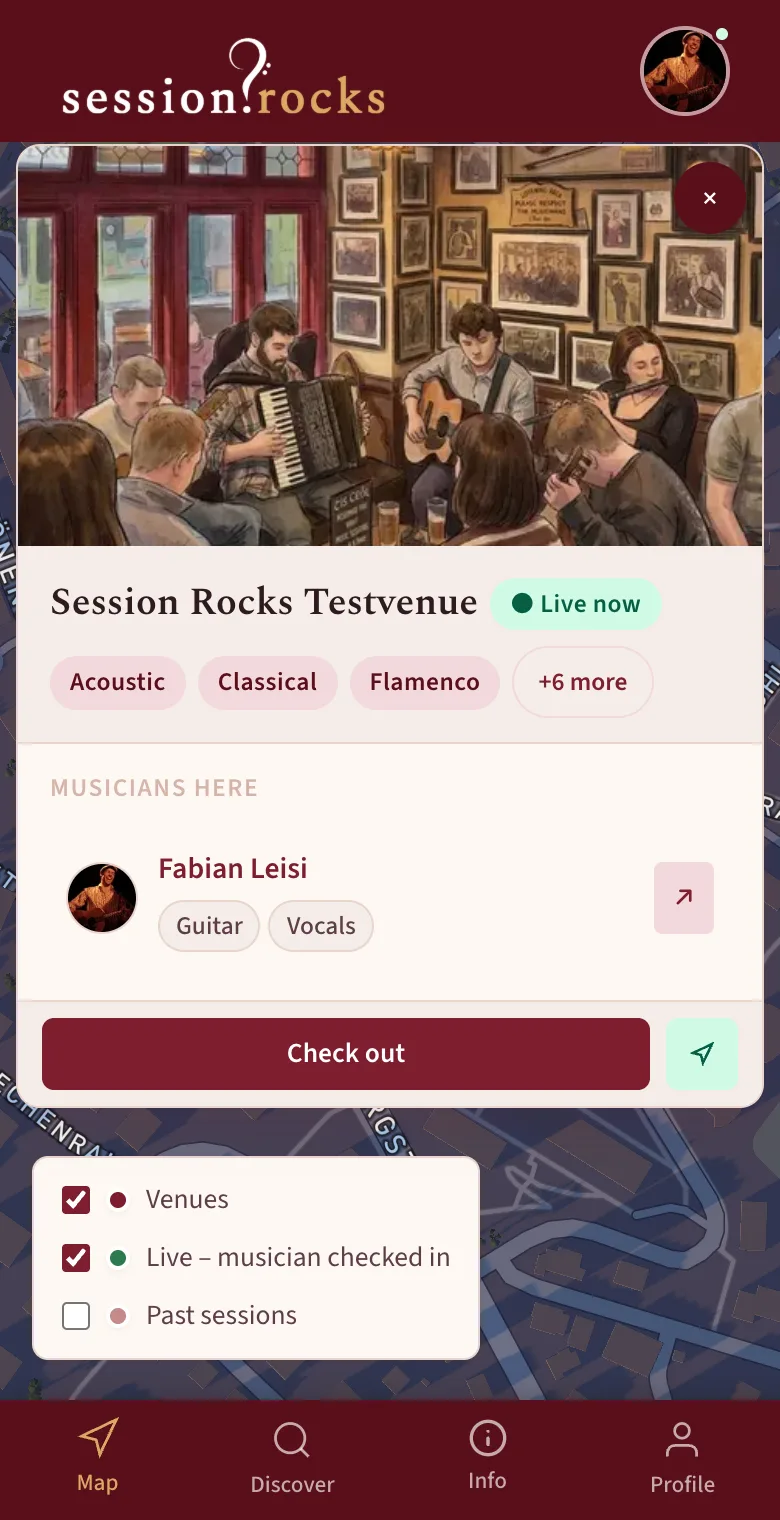
To check out, tap the live marker again. The venue card shows Live now with your name and instruments under "Musicians here". Tap Check out – the venue goes back to its normal marker.
Check in anywhere else
- 1
Tap your own blue dot
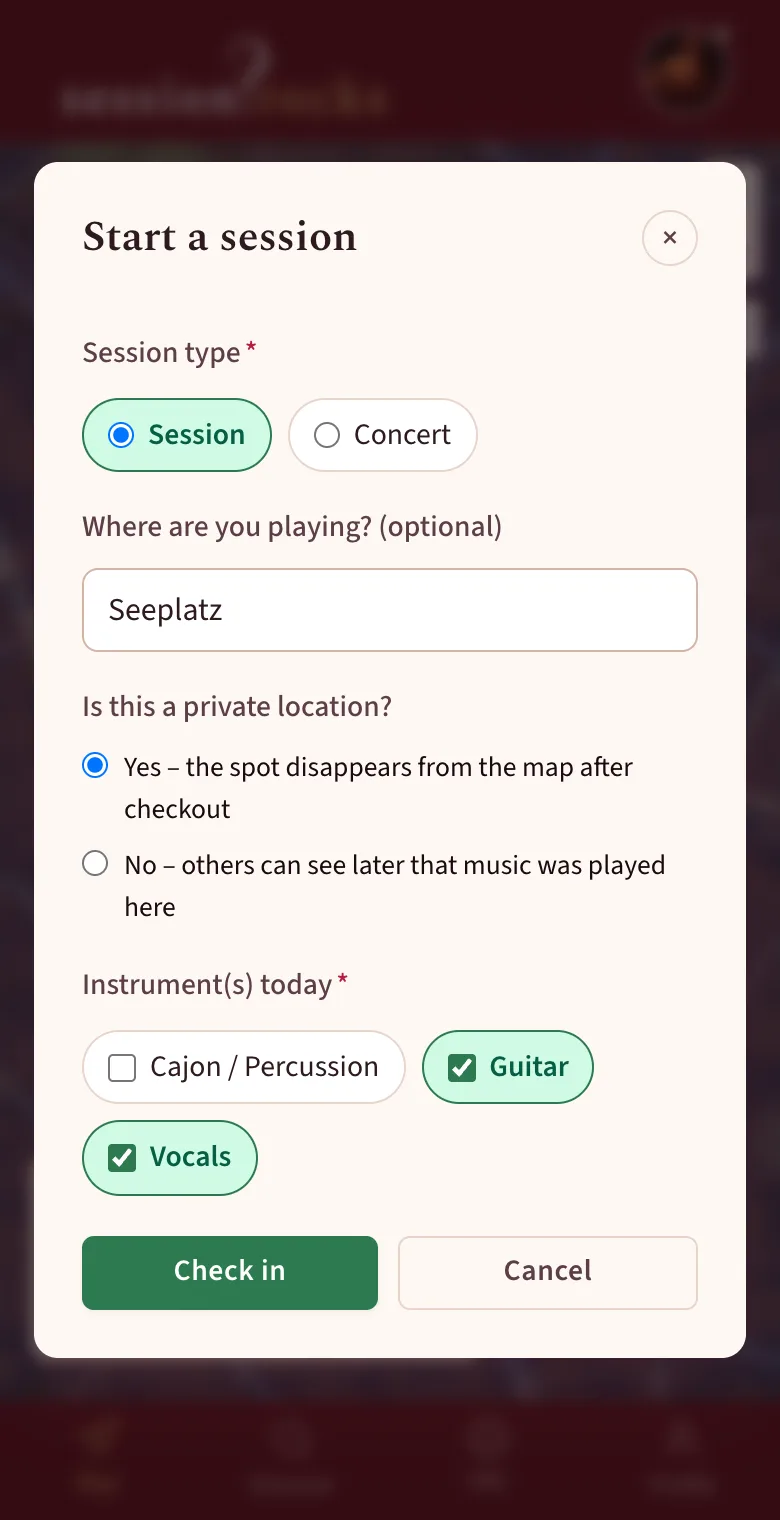
On the street, in a park or in a pub that isn't on the map yet: tap your blue location dot . Choose Session or Concert, name the place if you like and select your instruments. Under "Is this a private location?" you decide whether the spot disappears after checkout or stays visible under Past sessions.
- 2
Your live marker appears right where you play
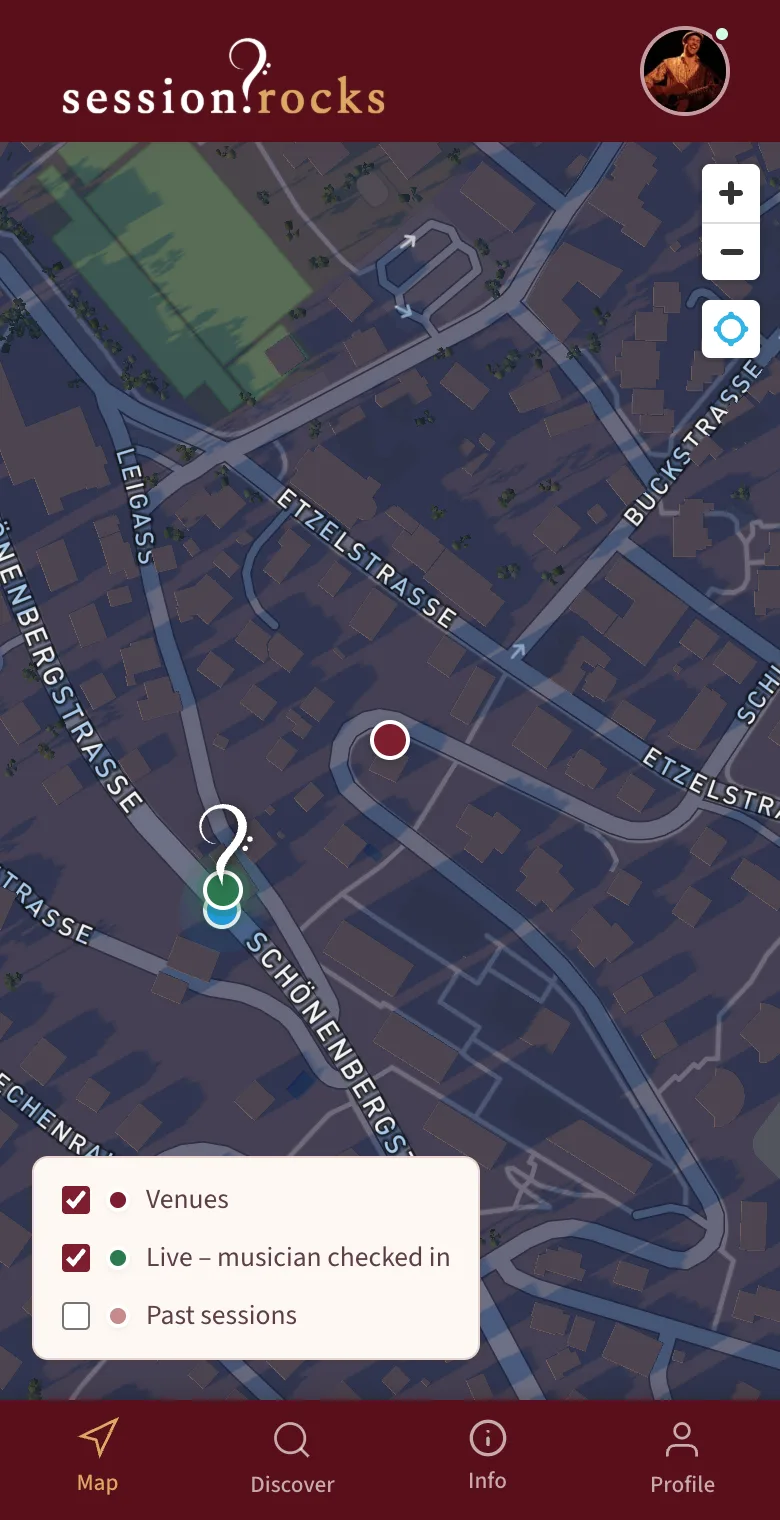
A green marker with the session.rocks logo now stands at your spot. Everyone who opens the map sees you live there, and other musicians can tap your marker and choose Join Session.
- 3
Check out when you're done
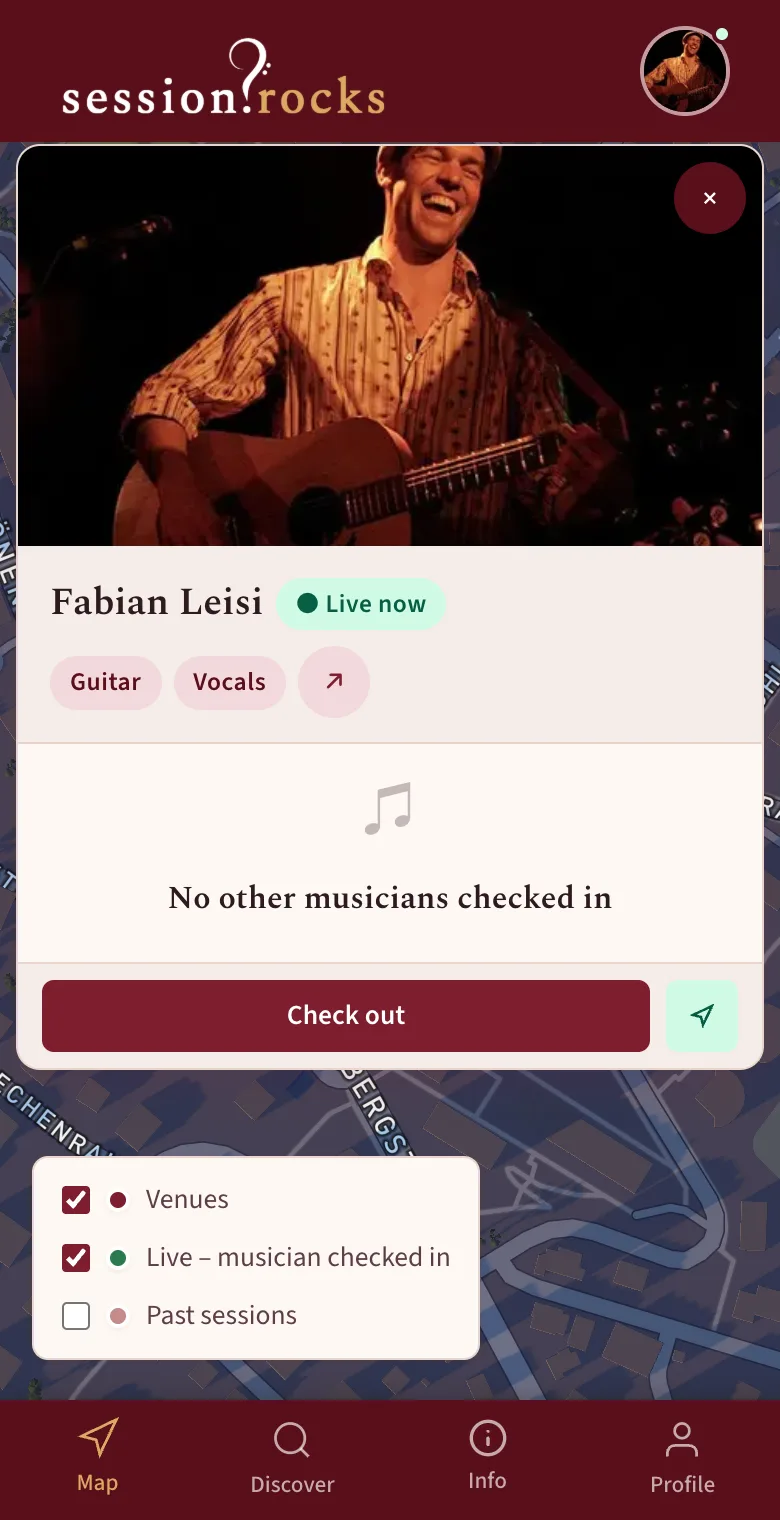
To check out, tap your live marker again and choose Check out. Your marker disappears from the map.
Good to know
- You can only be checked in at one place at a time. Checking in somewhere new ends your previous check-in.
- Venues only appear on the map on their session days. If a venue is missing today, check in at your own location instead.
- Your sessions and the venues you've played show up on your public profile.
How to use session.rocks as a venue
You offer the table, musicians bring the music. The check-in is done by the musicians themselves – your part is to be ready and visible.
Before the first session
- Register your venue and activate the membership.
- Complete your profile in the dashboard: venue URL, venue type, description and a cover photo. Only complete venues are shown on the map.
Set up your venue
- 1
Set your session days
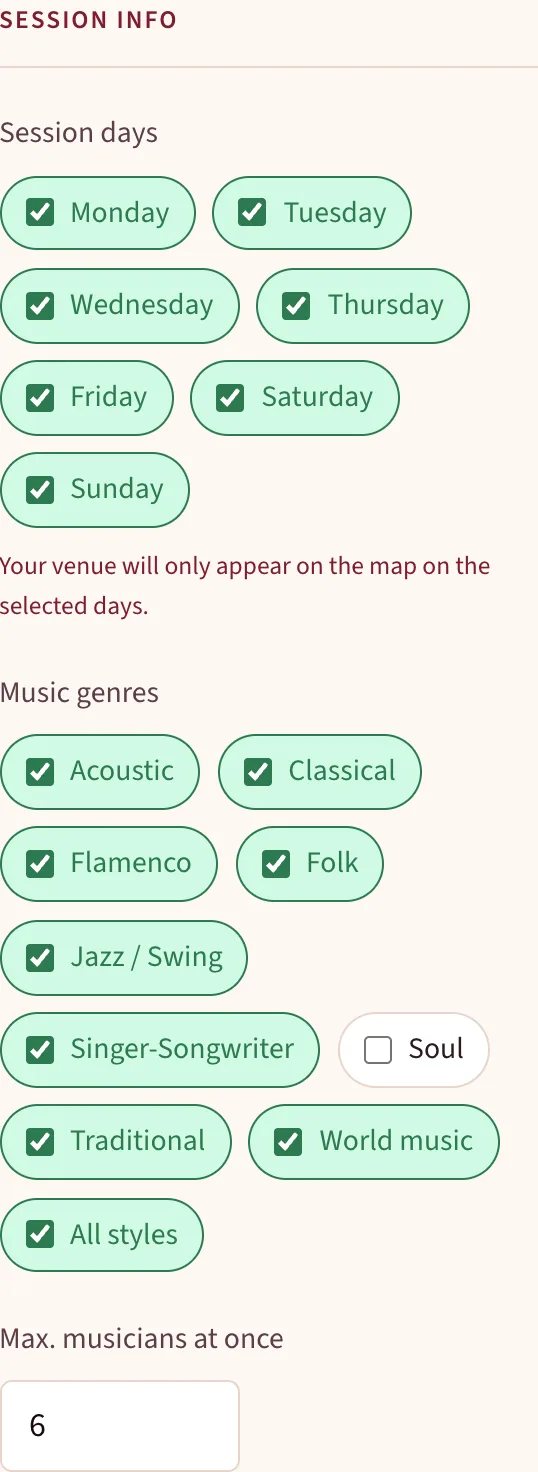
Open your dashboard and tick the weekdays on which musicians are welcome. Your venue appears on the map on exactly these days. Add your genres and how many musicians fit at once.
- 2
Tell musicians what to expect
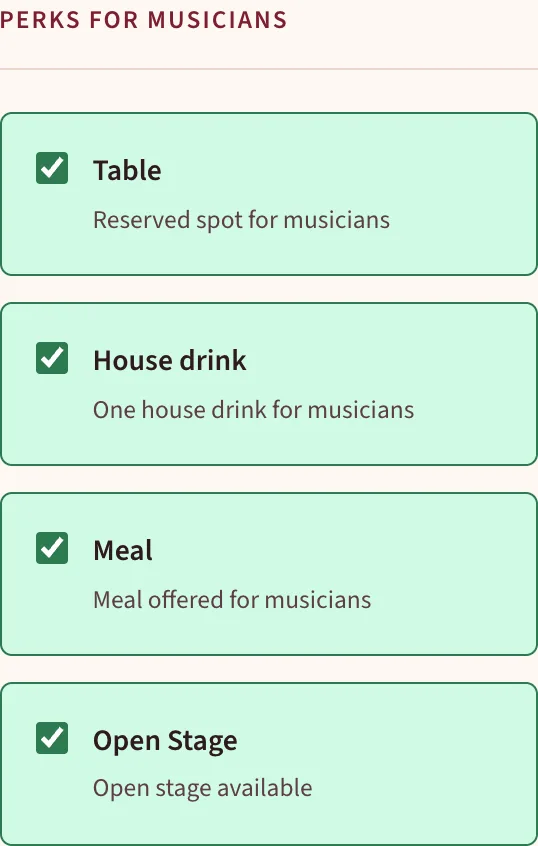
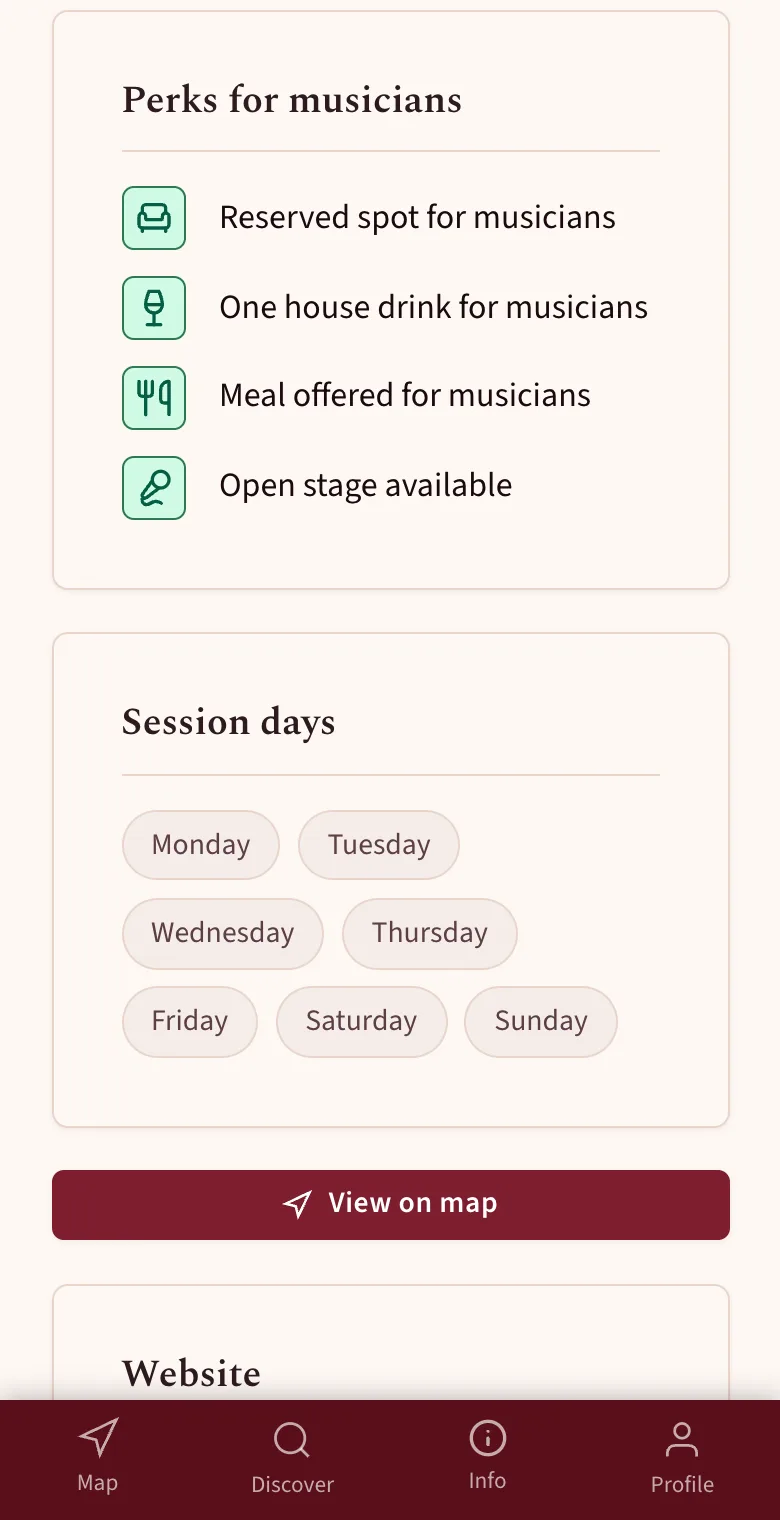
A reserved table, a house drink, a meal, an open stage – tick what you offer. Musicians see these perks on your venue profile.
- 3
Check your venue profile
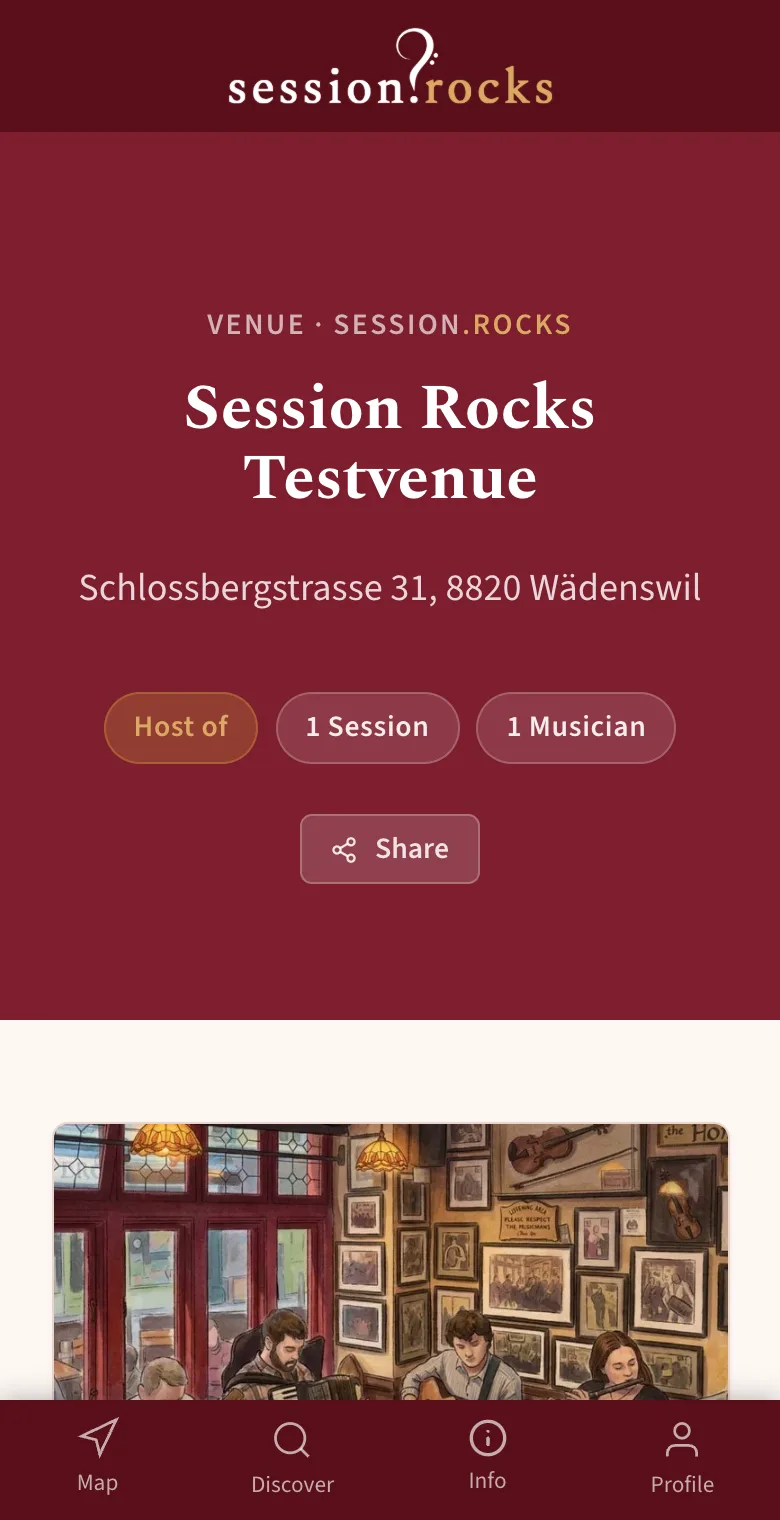
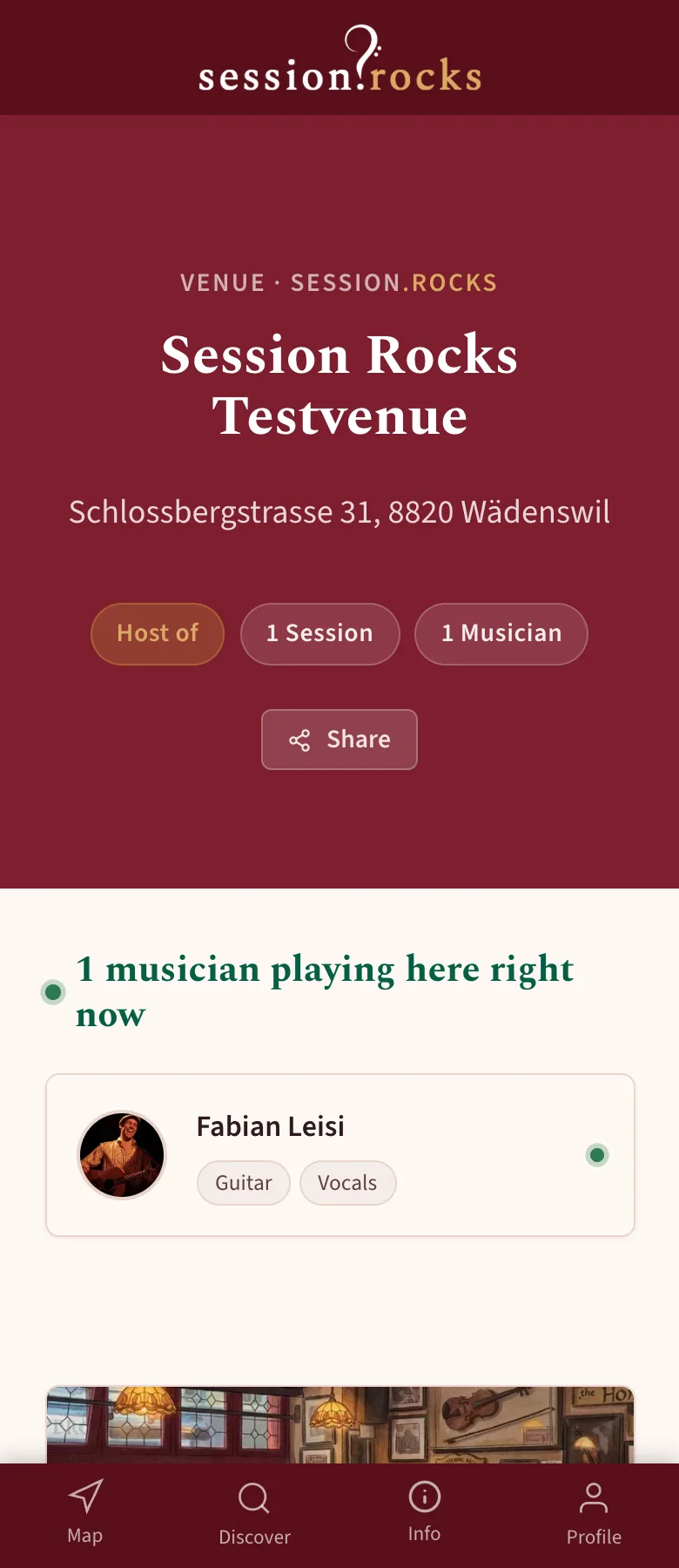
Your public profile lives at session.rocks/venue/your-venue. It opens with your name, address and cover photo, and counts the sessions and musicians you've hosted. Use Share to spread the link.
- 4
This is what musicians look at before they come
Below your description, the profile lists your perks, session days and genres, links to your website and shows the musicians who have played at your venue. View on map takes visitors straight to your marker.
On your session days
- 1
Your venue on the map
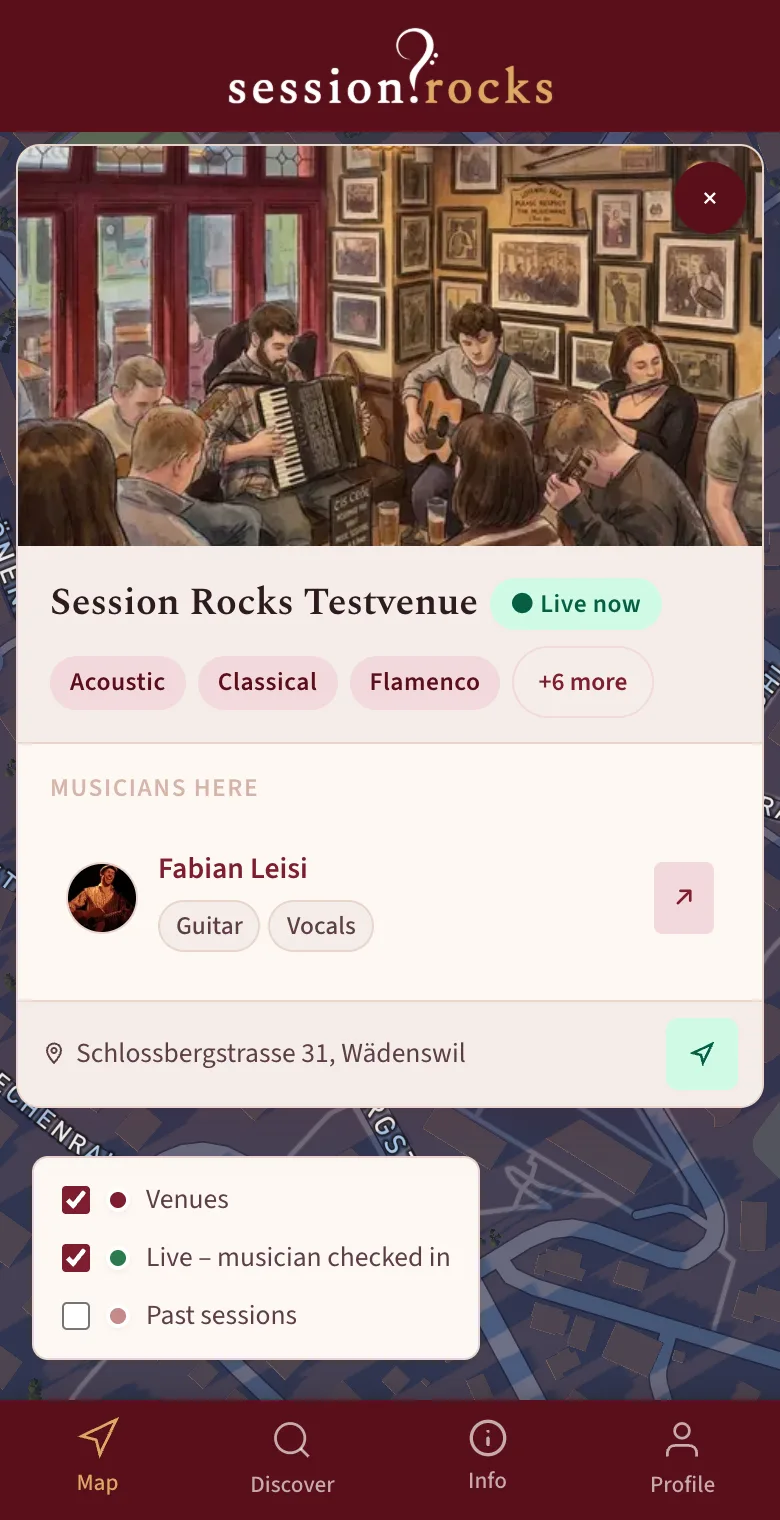
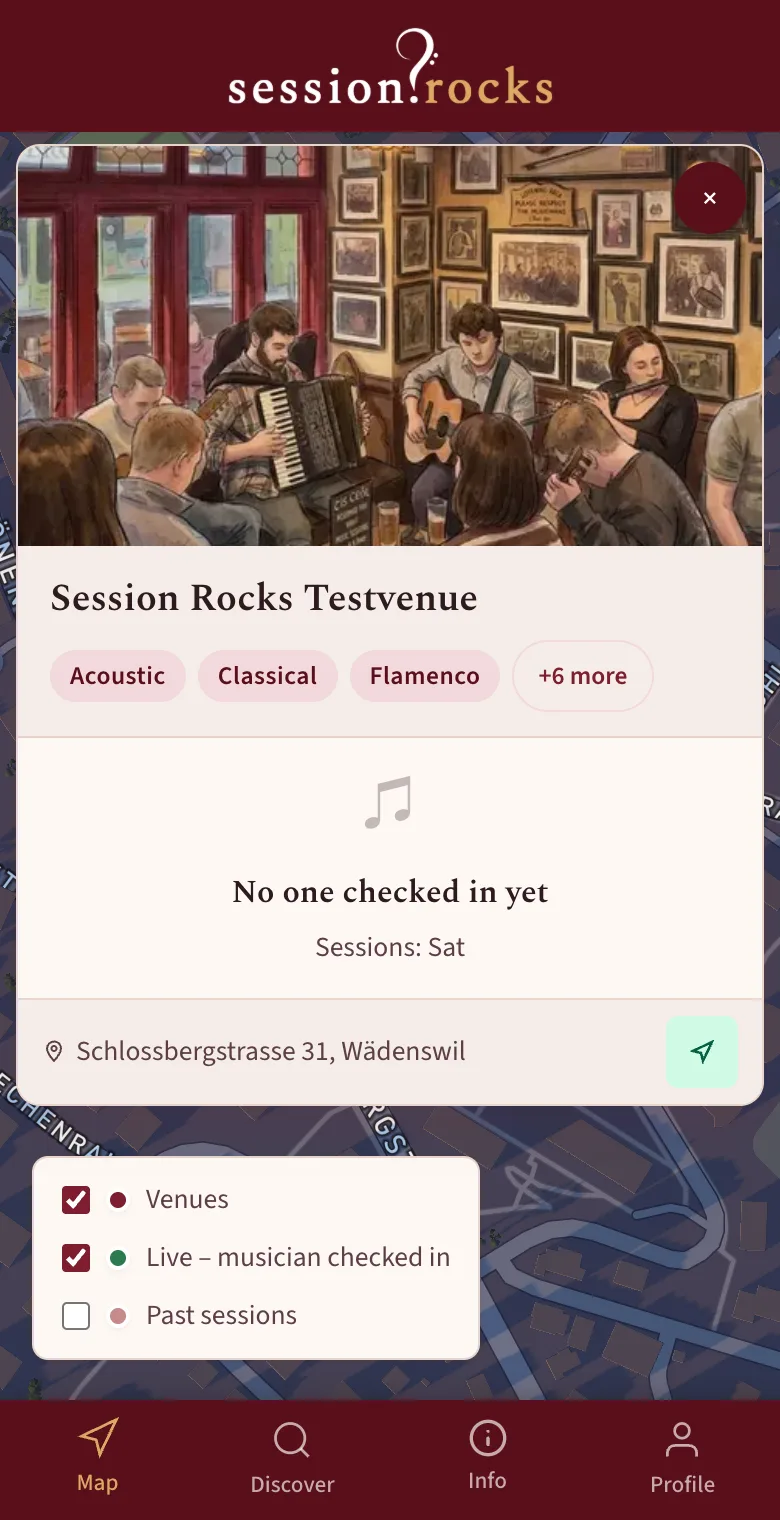
On your session days your venue is a burgundy dot on the map. Tapping it opens your venue card: cover photo, name, genres, your address and who is playing right now. The arrow button shows visitors the way to you.
- 2
Put the table card on the musicians' table
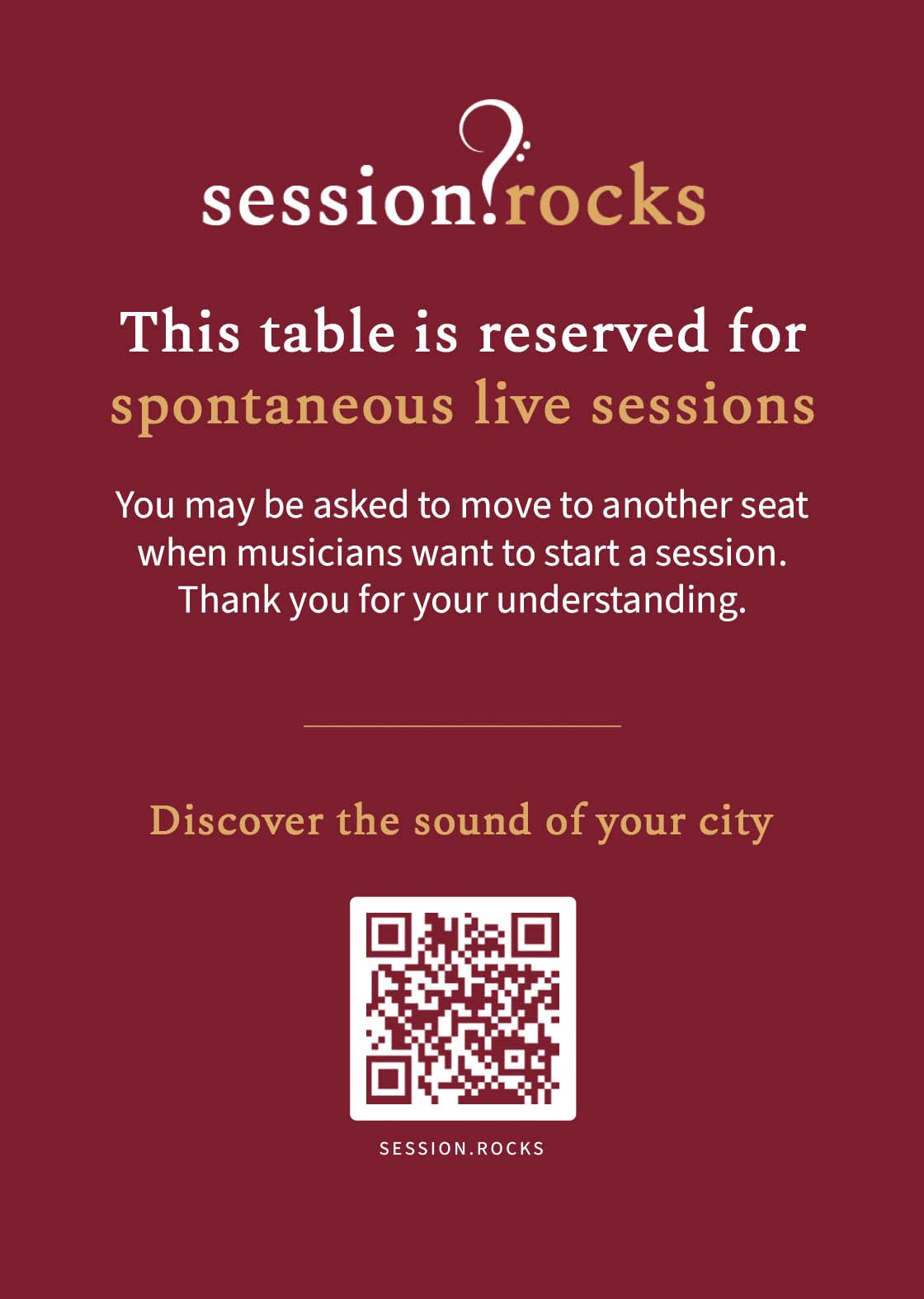
Download the table card from your dashboard, print it and place it on the reserved table. It tells your guests that the table is reserved for spontaneous live sessions, and its QR code leads them to session.rocks. Download the table card (PDF)
- 3
Musicians check in – you don't have to do anything
A musician sits down, opens the map on their phone and checks in at your venue. From that moment your marker is green on the map and your venue profile shows who is playing right now. When they check out, your venue goes back to its normal marker. Musicians who have played at your venue stay listed on your profile.
Good to know
- Your venue is visible on the map on your session days even when no one is playing – so musicians know they are welcome.
- Use the Share button on your venue profile to tell your guests when someone is playing.
How to use session.rocks as a music lover
You don't check in at all. You open the map, see where musicians have checked in – and go and listen.
All you need
- No account and no app – the map opens in your browser.
- Allow location access if you want to see what's playing near you and get directions.
Find live music near you
- 1
Open the map
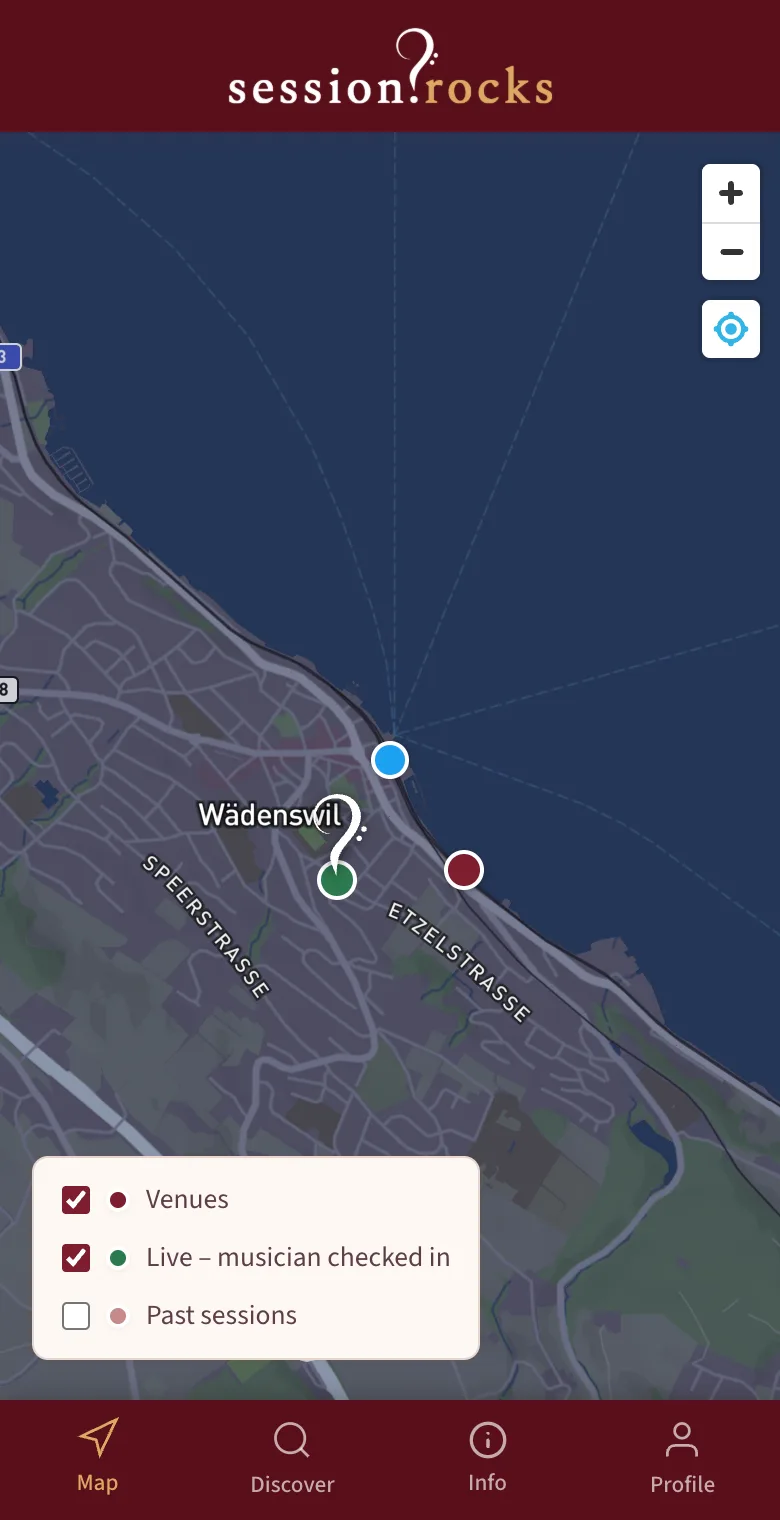
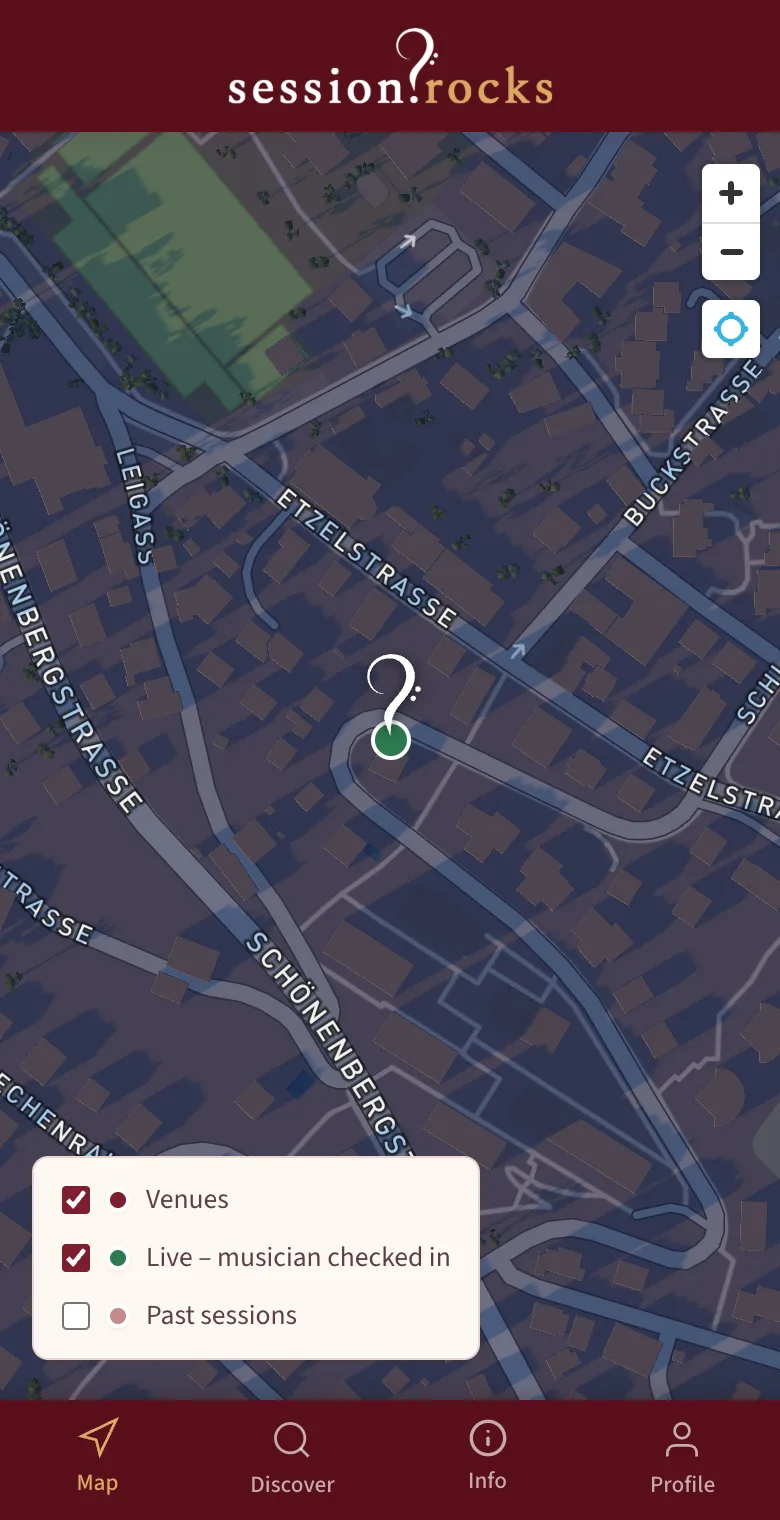
No account, no app – just open the map. A green marker with the session.rocks logo means music is being played there right now. Burgundy dots are venues with a session day today. Use the legend to switch layers on and off, including Past sessions.
- 2
Tap a marker to see who's playing
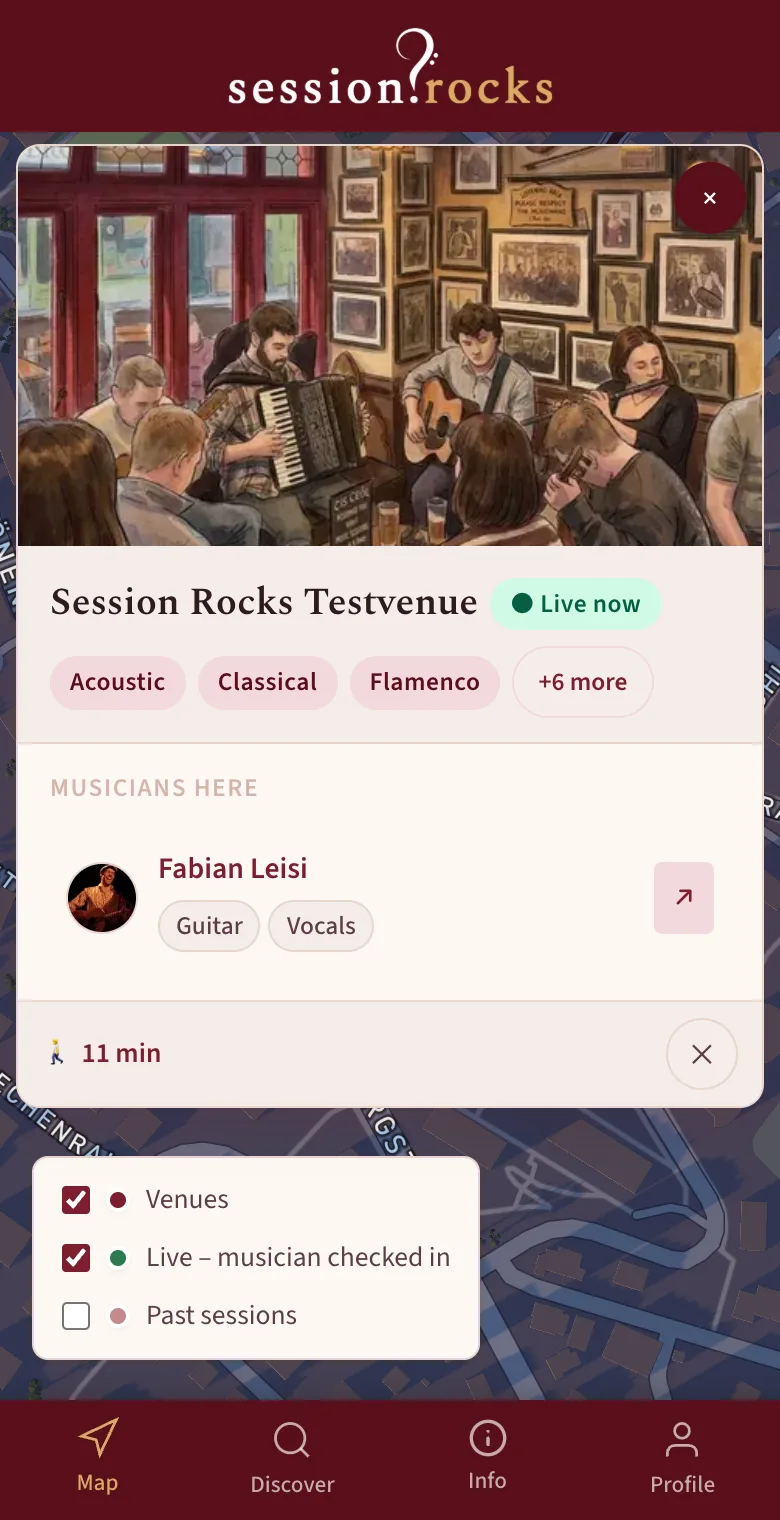
The card shows the venue, its genres, the address and the musicians who are checked in – with the instruments they brought today.
- 3
Let the map show you the way
Tap the arrow button at the bottom right of the card. With location access allowed, the map draws the walking route and tells you how many minutes it takes.
- 4
Get to know the musicians
Tap a musician's name to open their profile: where they've played, their instruments and – if they added them – links to their website, Spotify or a tip link. Liked what you heard? Leave a tip.
- 5